

KDS Hardware 101
A Kitchen Display System is only as reliable as the hardware it's running on. Even the most advanced KDS software can't perform at its best if it's paired with the wrong screens, mounting solution(s), or kitchen environment.
Choosing KDS hardware isn't just about buying a touchscreen. Heat, moisture, grease, viewing angles, durability, and ease of cleaning all play a role in creating a setup that keeps your kitchen running smoothly, service after service.
In this guide, we'll walk you through the essential hardware components of a modern Kitchen Display System, explain what to look for when selecting displays and accessories, and highlight the common mistakes restaurants make when designing their kitchen workstation. Whether you're opening a new restaurant or upgrading an existing kitchen, this guide will help you build a KDS setup that's fast, reliable, and ready for the demands of professional hospitality.
Before choosing displays, touchscreens, or mounting solutions, it's worth understanding what a Kitchen Display System actually is and how it fits into a modern restaurant workflow. If you're new to KDS technology, start with our guide: The ultimate guide to Kitchen Display Systems for Modern Hospitality.
Operating System
The operating system is the software platform you run on. Most applications run on one of the three main operating systems, so you will have to check with every supplier what requirements they have. Some only run on Android or iOS, others are more flexible and can run on multiple different operating systems. Which platform you choose will have impact on your choice of hardware, maintenance, longevity and ease of use.
- Windows
The Windows platform is still one of the most used systems worldwide and gives you many options in hardware choice. Generally speaking, it is the most flexible, but it also generally requires more maintenance and IT expertise. - iOS
The mobile OS made by Apple that is extremely user-friendly and easy to use and maintain. It is however extremely limiting in hardware choices as you must use an Apple-device to run it, like an iPhone or iPad. Although an iPad might work just fine for your business, the screens are generally smaller than most KDS solutions and are not purpose built for kitchens. It does have a very large market in peripherals and if an iPad suits your operation it can be a very easy choice. - Android
Android is Google's 'open-source' operating system and comparable to iOS in the way it works. As it is open-source, there is much hardware available from various manufacturers so you will have way more choice than with iOS. The trade-off is that Android devices vary significantly in quality and performance, so it is advisable to ask your supplier if they have 'certified devices' or models they advise.
Besides the three main operating systems, there are kitchen display systems that run in a browser. This basically means it can run on any OS that supports webbrowsing. This gives you by far the most choice in hardware which is great. Browser-based applications are incredibly flexible, but they typically consume more system resources than native applications. As a result, they may feel slightly slower and often have fewer hardware-specific capabilities. In general you will find that this type of software runs a bit slower and has less functionality than actual applications that can really use all the resources your hardware platform can offer.
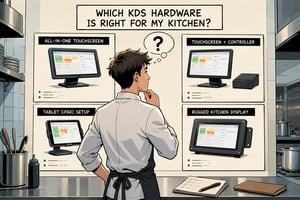
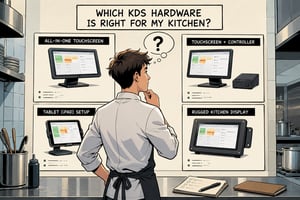
All-in-One Devices vs. Separate Controller and Touchscreen
Every Kitchen Display System needs hardware to run on. Whether it's an iPad, Android tablet, Windows PC, or even a browser-based solution, every KDS relies on a computing platform. Some modern Kitchen Display Systems even run entirely in a web browser. But whatever OS your system is running on, it will require some kind of computer. Generally, in the restaurant industry, there have been two solutions commonly adopted:
- Controller-boxes with a (touch)monitor.
This means you use a dedicated controller that contains the computer that is connected to a monitor, with or without touch. The advantage of this is that you are using separate components, so if one of them breaks or has an issue, you only have to replace that component. The disadvantage however is that the solution results in a less streamlined installation. , you have more cables running (at least one HDMI cable between de controller and the monitor, although adding touch functionality usually requires an additional USB cable as well). - All-in-one devices
These are devices where the computing unit and the (touch)screen are one single device. An iPad or tablet is an example, but there are also many devices made by other manufacturers. Manufacturers such as Kitchen Armor, ELO and Sunmi offer purpose-built all-in-one solutions. Annoncer's own Prestige Series was designed specifically for the demanding environment of professional kitchens. These devices are generally clean and easy to install, with no extra cabling or mounting needs for a controller. Of course, if there is an issue the disadvantage is that you generally need to replace the whole unit if it cannot be repaired.
Water and Dust Resistance
Grease, steam, sauces and cleaning chemicals are among the biggest enemies of electronic equipment in a professional kitchen. Hence, many Kitchen Display Systems use hardware that is more or less water proof. Internationally this is measured and certified with something we call an 'IP-rating'. The IP rating stands for the amount of liquid and dust a device is protected against. An IP-rating is expressed in two digits. The first digit represents the amount of protection against solids, like dust and sand. The second digit represents the level of protection against fluids, like water.
The infographic below explains how IP ratings work:
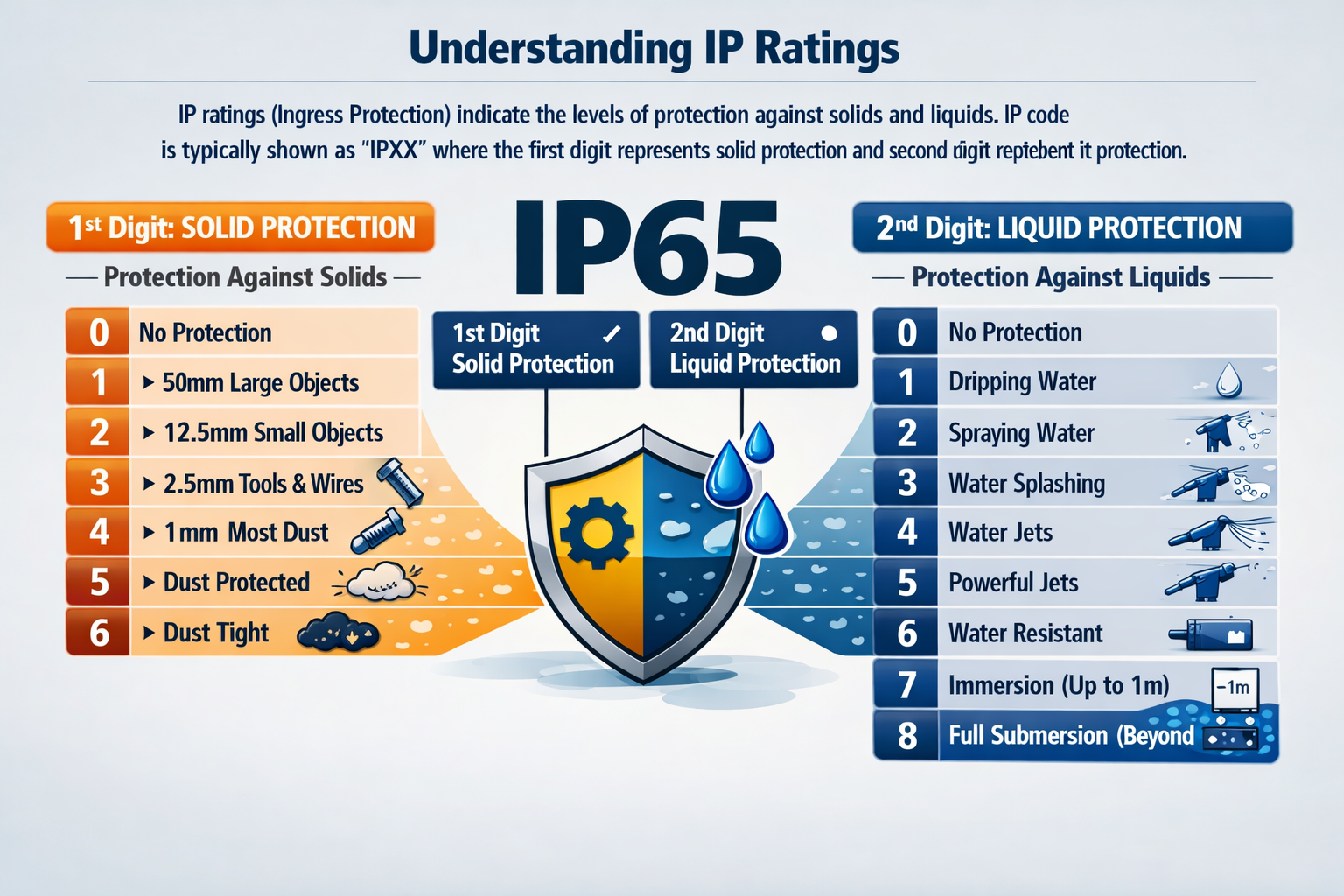
As a reference, our Prestige all-in-one screens are fully IP65 certified, which means they have been tested and were found to be fully dust tight and can withstand a powerful jet of water, from all sides. Be careful when comparing IP ratings. Some manufacturers only certify the front of the display, leaving the rear vulnerable to moisture and dust.
Power
All electronics need some form of electricity. Usually this is delivered through a socket and a power cable. You will need to make sure you have enough power outlets in your kitchen to supply all your screens. Commercial kitchens often contain heavy-duty equipment that draws significant power. Before installing multiple displays, ensure the electrical circuit has sufficient capacity.
In the last couple of years a new option has emerged, called Power Over Ethernet, or POE. With this technique the device is powered through the network cable. This does have very specific requirements and will require specialised hardware as well, like a POE switch. Power over Ethernet requires compatible hardware and careful planning. Using incorrect equipment can lead to unstable operation or insufficient power delivery, so it's important to follow the manufacturer's specifications. Make sure you know what you need to know before going this route and read a POE blog first.
Other considerations
- Always check for maintainability. Can the device be repaired? How does the supplier deal with broken hardware? Do they offer spare devices if one is out for repair? Purchasing cheap hardware might feel good at the moment of purpose, but don't forget that these systems are mission critical in most cases! What are you going to do when it breaks or has an issue (all hardware breaks at some point)?
- Can the device be mounted and if so, what are the options? Does it support VESA or does it require proprietary mounting solutions?
- Hardware performance. Especially Windows and Android hardware is available in many different configurations. Make sure it meets the specification of the software at a minimum, but also think about other uses. Maybe you also want to run some other software on the screen, can it handle that from a performance perspective? Slow hardware in a fast moving production environment can not only be extremely frustrating, but it will cost you money in the end.
- Size. We find that 21" screens seem to be the sweet spot for most kitchens, but you will definitely want to think about the size of the screen. As a rule of thumb, the larger it is the better readable it will be. Also buttons will be easier to press. You will have to consider the space you have available, the cost that it brings and the practicality.
Conclusion
Choosing KDS hardware is about much more than buying a touchscreen. The right combination of display, operating system, mounting solution and environmental protection determines how reliable your kitchen technology will be during every service.
Your Kitchen Display System is a mission-critical part of your operation. Investing in hardware that's built for the realities of a professional kitchen will reduce downtime, improve reliability and save money over the long term.
If you're unsure which hardware is right for your kitchen, talk to your KDS supplier. An experienced partner can help you select a setup that fits your workflow today while remaining reliable for years to come.
Want to learn more?
Everything you need to know about KDS hardware.
Read More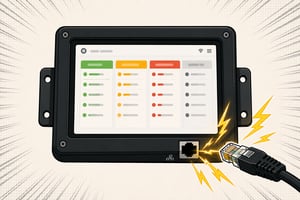
An extensive guide about using PoE in your kitchen.
Read More
Discover how restaurants use Annoncer in practice.
Read More
Explore insights that help you improve performance.
Read More